📦 Change Package Name
📋 Overview
Learn how to change the package name (bundle identifier) for both Android and iOS platforms in the eSchool SaaS mobile application.
🔄 Steps to Change Package Name
1️⃣ Prepare the Project
-
Unzip the downloaded code. After unzipping you will have E-School - Flutter Code zip folder. Unzip that folder and open it in Android Studio or Visual Studio Code.
-
Open IDE terminal, go to your project path and execute command:
flutter pub get -
If you are running this app for iOS, then run these following commands in terminal:
cd ios
pod install
cd ..
2️⃣ Change Package Name of Android App
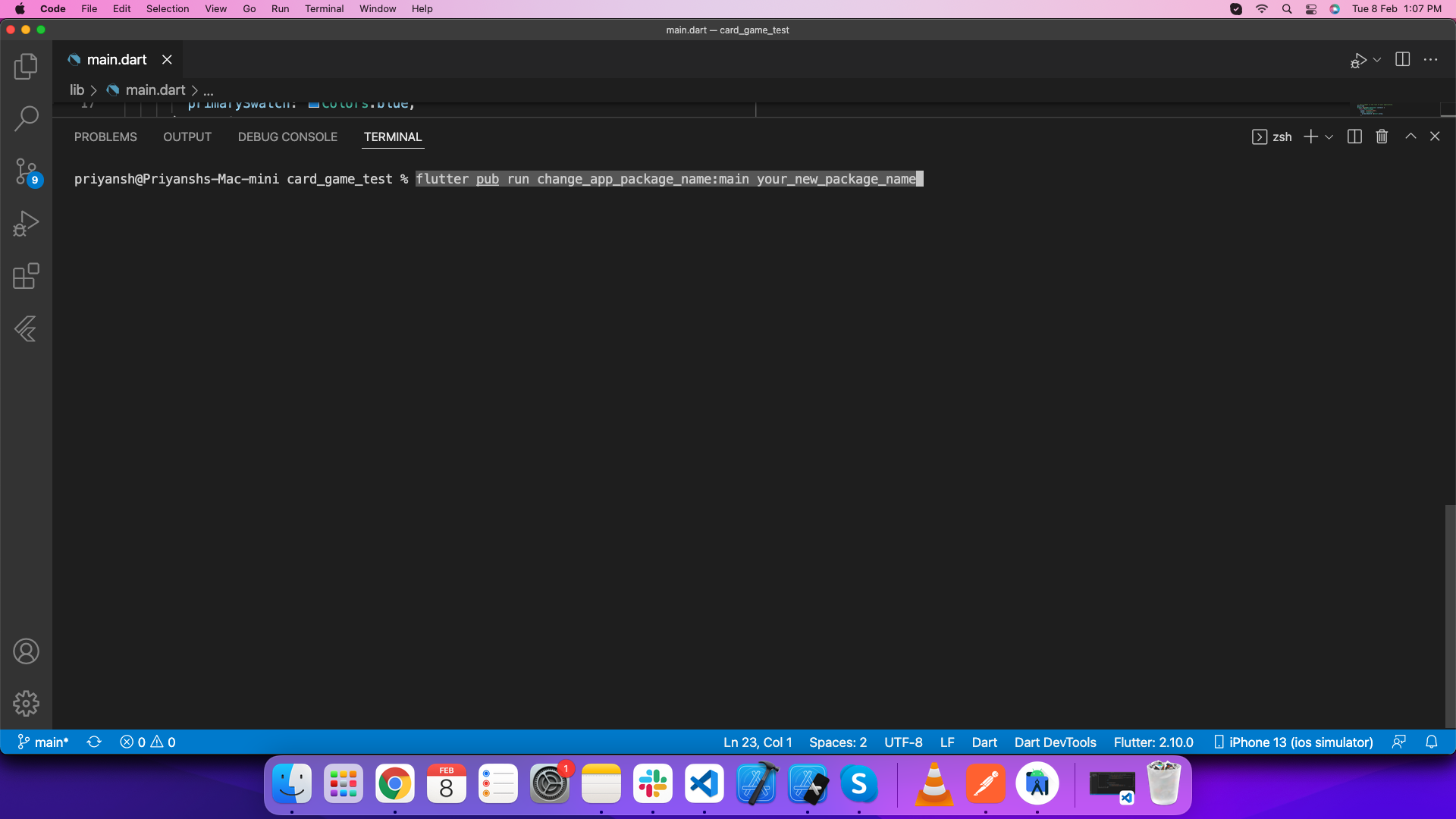
Execute this command in your terminal:
flutter pub run change_app_package_name:main your_new_package_name
Replace your_new_package_name with your desired package name (e.g., com.yourcompany.eschool).
3️⃣ Change Package Name of iOS App
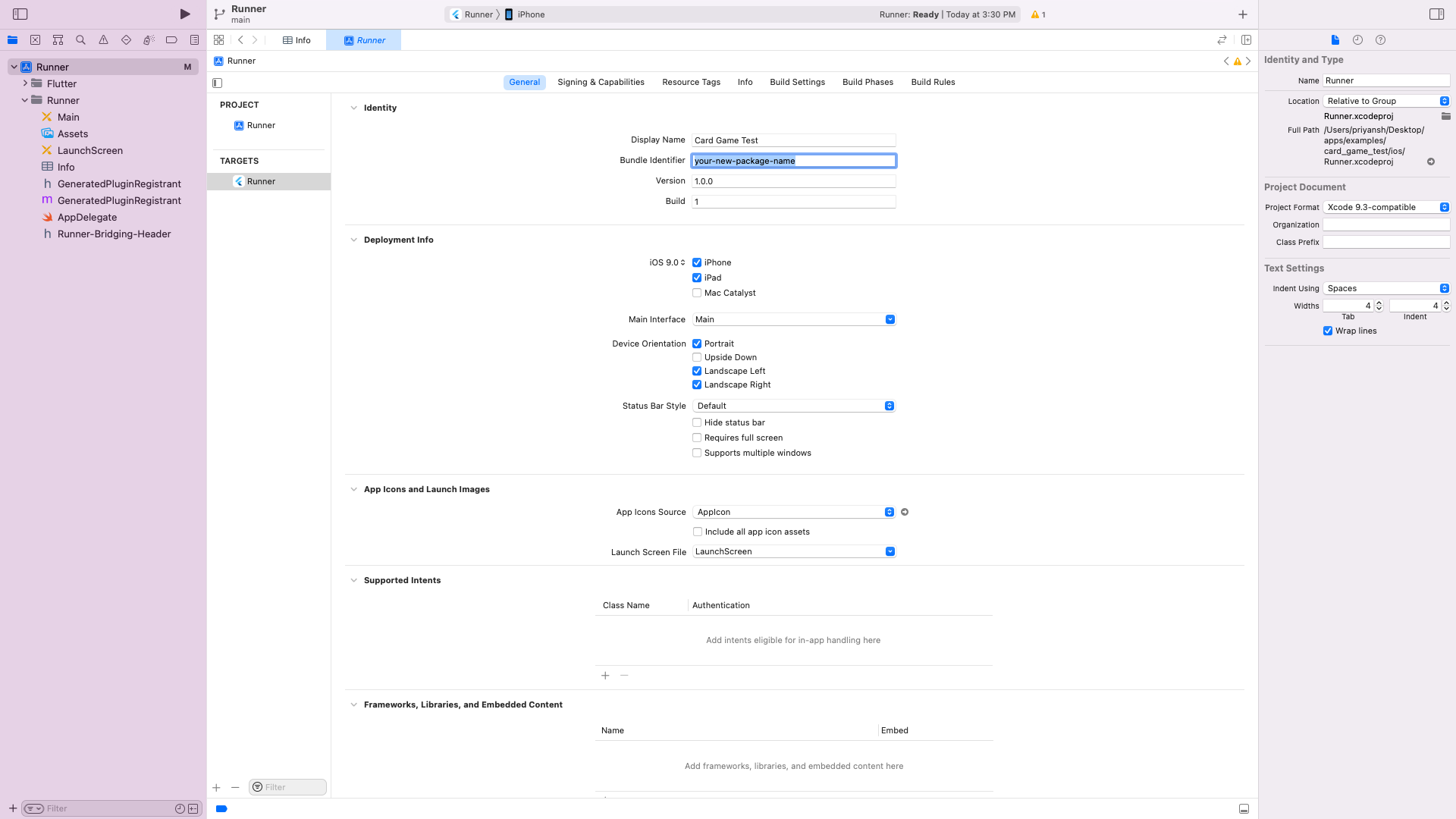
- Open iOS folder of this project in Xcode
- Go to Runner → Targets → General → Identity
- Enter new package name in Bundle Identifier
⚠️ Important Notes
- Package name must be unique and follow platform naming conventions
- Android package names should use reverse domain notation (e.g.,
com.yourcompany.eschool) - iOS bundle identifiers should match the same format
- After changing the package name, make sure to:
- Clean and rebuild the project
- Update any Firebase configuration files if applicable
- Test the app thoroughly on both platforms
🔧 Example Package Names
- Android:
com.yourcompany.eschool - iOS:
com.yourcompany.eschool